October 23, 2026 · 8 min read
What to Lock Before You Let an AI Manage Google Ads
A safety checklist for an owner or marketing lead who may let an AI manage Google Ads. It covers what to lock, what the AI may change, and how to audit every write.
By the AdvisorPPC Team · Reviewed by Claude
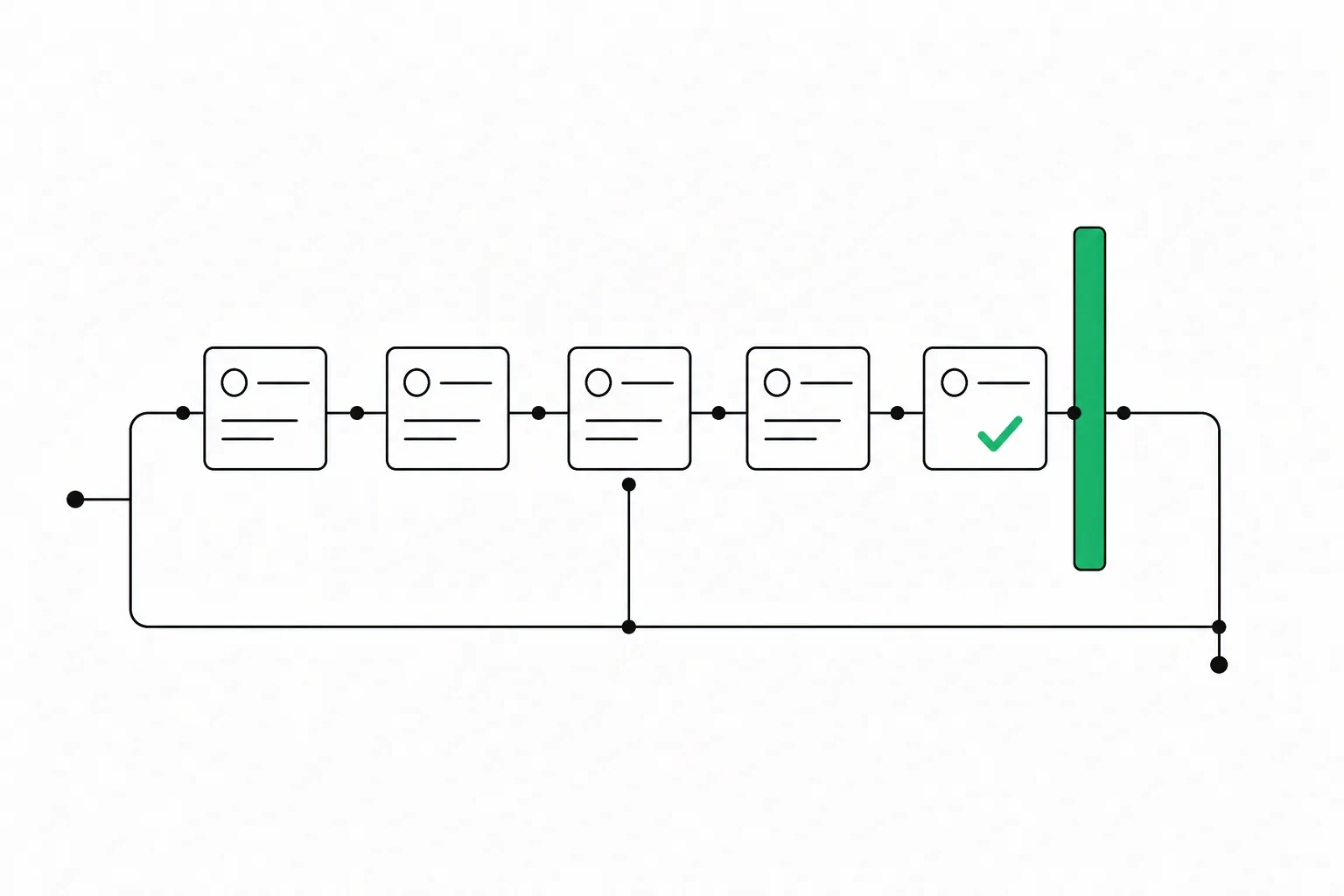
You are about to connect an AI to a live Google Ads account. Before it can write, use this safety checklist: limit access, turn off unchosen changes, approve each edit, and audit change history.
This is for an owner or a marketing lead about to let an AI manage a live Google Ads account. You will be able to set the access level, turn off auto-apply, hold edits for approval, and audit each write in change history.
What access level should you give an AI in Google Ads?
An access level is the set of actions a signed-in user can take in a Google Ads account. The safety checklist for letting an AI manage your Google Ads account starts here, because the connection must respect the access granted to it. The page About access levels in your Google Ads account lists Email-only, Billing, Read-only, Standard, and Admin. Only Standard and Admin can edit campaigns.
Read-only can view campaigns and billing information. Standard can also edit billing information and, on postpay accounts, add funds and change the payment threshold. Admin can manage user access, product links, and manager requests. A linked manager with ownership can manage user access too.
These permissions are broader than choosing keywords. Decide which actions you need before granting access, keep administration with a person, and review linked managers as well as individual users. Approval must be a separate agreement about each proposed edit.
| Access level | Can edit campaigns? | Can make a payment or add funds? |
|---|---|---|
| Email-only | No | No |
| Billing | No | Yes |
| Read-only | No | No |
| Standard | Yes | Yes, on postpay accounts only |
| Admin | Yes | Yes |
Source: Google Ads access levels, read 2026-10-24.
- Start on Read-only.
- Use Standard only for writes you will approve.
- Keep Admin with a person, not the AI.
- Recheck the level after the invite is accepted.
The miss is treating Standard as campaigns only. On a postpay account it can add funds. Run the Google Ads audit checklist while access is still Read-only.
Which settings should you lock before the AI can write?
Auto-apply is a setting that lets Google Ads apply selected recommendations with no new click from you. On a safety checklist for letting an AI manage your Google Ads account, lock it before the AI can write, or the account has two writers. The page About applying recommendations automatically says you can turn auto-apply on or off at any time, and that it applies only at account level. Auto-applying recommendations will not increase your budget.
The same page lists recommendation types you can auto-apply: CPA and ROAS targets, added keywords, broad match keywords, and removal of conflicting, non-serving, or redundant keywords. Search partners, Display expansion, targeting expansion, and a conversion-tracking upgrade are listed too. From January 26, 2026, the Add responsive search ads recommendation no longer automatically suggests or applies new responsive search ads. Recommendations change, so check the page again later.
You can dismiss a queued recommendation that does not match the job.
- Turn off every auto-apply type until you have read it.
- Leave bid targets, new keywords, and conflicting-negative removal off.
- Leave search partners and expansion settings off.
- Check History later and confirm nothing applied alone.
The miss is leaving auto-apply on because it will not raise the budget. It can still move a ROAS target. ROAS is return on ad spend, as About Target ROAS bidding describes. Read what optimization score actually measures before you chase a score.
What should you let the AI change, and what should wait?
An automated rule is a saved condition that changes a Google Ads account when the condition is true. Read those rules before an AI manages the account, because a rule writes with no approval from you. The page Set up automated rules says a rule can change ad status, budget, and bids, and more, and that a rule can email you when a condition occurs. Hold the AI to the same line.
A negative keyword is a term you add so an ad does not show for a search you do not want. Let the AI propose negatives for queries you do not sell, and a new keyword only when the query is work you do sell. Pausing or enabling a keyword, an ad group, or a campaign can share that proposal queue, because you can turn it back the same day. Keep budget edits and bid edits for an explicit yes.
A saved rule may already change both with no one watching.
- Propose negatives only for queries you do not sell.
- Propose a keyword only for work you do sell.
- Pause or enable only when you can reverse it the same day.
- Hold budgets, bids, and old rules for a yes.
A new keyword can match a query you do not sell. Block that query with negative keywords. When the choice is pause or negative, decide on the query. Do not pause a keyword that still converts.
How do you keep approval in front of every write?
Approval is a yes or a no on one named edit before it reaches Google Ads. Connecting an app is not that yes. OAuth 2.0 is the sign-in method the Google Ads API uses. The page Use OAuth 2.0 to access Google Ads API says the API lets an app reach your account without handling or storing your login info.
The app also needs a developer token before it can make calls. For accounts the app manages for other people, Google's path is multi-user authentication: you sign in and you authorize the app. That is the connection only. It does not approve a keyword, a budget, or a bid.
The page Manage access to your Google Ads account says the invitee needs a Google Account, and that you can change the access level or remove access later from Access and security in the Admin menu. Require a proposal that names the object, the old value, and the new value, and answer it before the call.
- Name the object, the old value, and the new value.
- Approve budgets, bids, goals, users, and billing one by one.
- Remove access the same day if the level is wrong.
- Revoke the app if you stop using it.
Name the campaign, the change, and the old value. See approval gates for AI PPC agents and why approval still matters. Pause rules from last year before the first week.
How do you audit each change the AI makes?
Change history is the log of edits in a Google Ads account, and it is how you audit each change an AI makes. The page About change history says the log lists changes to your account, campaigns, and ad groups during the past 2 years. Older data is not available. You can see when a campaign was paused, who added a keyword, and the amounts of your previous budgets.
Filter by date, by change type such as a budget adjustment or a keyword edit, or by one campaign or one ad group. The User column shows an email when the edit came from the Google Ads interface. An API change may show Google Ads API, or a specific tool name, in that column. Automated changes may show a system user.
Each change is mapped to impressions, clicks, conversions, clickthrough rate, and cost. The page limits detail per entry, so prefer a change that affects fewer than 2,000 entities when you need every line.
- Open the log for the day of the batch.
- Filter to the tool name or to Google Ads API.
- Match each row to a proposal you approved.
- Split any edit near 2,000 entities.
If a row has no proposal, stop the next batch. Read change history next to the notes. A PPC change receipt helps only when it names the same object. A missing row is not proof nothing changed.
What should you review every week?
The search terms report is the list of searches that triggered your ads, and it is the weekly check after an AI adds keywords. The page About the search terms report says a search term is the words a person enters on Google or a Search Network site, and a keyword is the words you add to an ad group. The report keeps terms that a significant number of people used and that triggered impressions and clicks. Google omits some terms without enough activity, to meet its privacy standards, so a blank is not proof the query never spent.
Search terms insights group queries from the date range you select. Theme labels use the last 56 days of data and can include a term that no longer serves or that you already excluded. Performance Max is a campaign type. The page says the report helps you find search terms that led to conversions there.
Store visits and store sales conversions are not compatible with this report.
- Sort by cost and mark queries you do not sell.
- Open Search terms under Insights and reports, then turn on the Keyword column.
- Check auto-apply History for the same dates.
- Confirm the access level did not change.
Google's example is a shop bidding on roses, where the search red roses can match. Read the search terms report for a query you do not sell. Where wasted spend hides is often that gap.
Use it inside Claude or ChatGPT
Ask for a read-only review of access, automatic changes and the evidence you should require before approving an edit.
- AdvisorPPC in the Claude connector directory
- the AdvisorPPC plugin for Claude Code on GitHub
- how to add AdvisorPPC in ChatGPT
Can the AI start with read-only access?
Yes. Read-only can view the account and cannot edit a campaign. Stay there until you approve each write.
Will auto-apply raise the budget?
No. Google says it will not increase your budget. It can still change targets, add keywords, and remove conflicting negatives.
Where do API edits show up?
In change history. Interface edits show an email; API edits may show Google Ads API or a tool name. The log keeps the past 2 years.
What if one edit is huge?
Detail is limited on each entry. Keep a change under 2,000 entities when you need every line, and split the upload first.
For the wider review, use the Google Ads audit checklist. Find my wasted spend free. AdvisorPPC's Free plan reads and reports on Google Ads without changing the account. No card is required.
Policy details checked against Google Ads Help and the Google Ads API OAuth overview on 2026-10-24.