Published · 4 min read
Fake clicks, real money: read Shield's reports in Claude
Shield captures each ad click with a first-party tag on your landing page, scores it, and keeps the reasons for each score.
By the AdvisorPPC Team · Reviewed by Claude
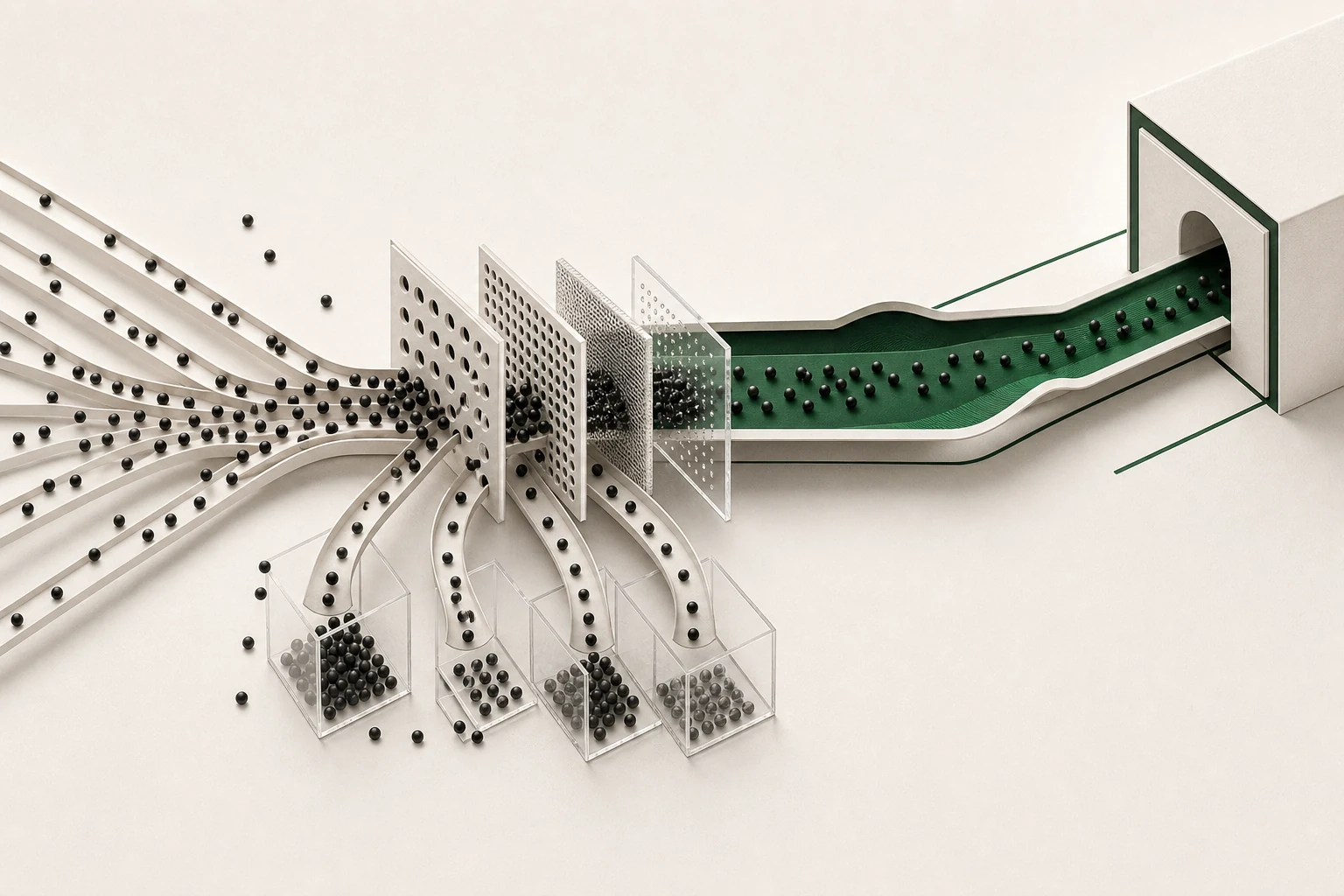
If you run search ads in a competitive local market, you have probably seen it: a burst of clicks overnight, no calls, no forms, and a budget that ran out before your real customers woke up. Some of that is bots. Some is data-centre traffic. Some is the same visitor clicking again and again. You pay for all of it.
Shield is AdvisorPPC's click protection product. It looks for paid clicks that seem invalid. From today you can read Shield's click-fraud reports from a conversation in Claude.
How Shield decides a click looks wrong
Shield captures each ad click with a first-party tag on your landing page, scores it, and keeps the reasons for each score. The reasons matter: you should never act on a score alone, only on a pattern you can explain.
| Signal | What it suggests | What you do with it |
|---|---|---|
| Data-centre address | Not a home or mobile connection | Read the reason, then decide |
| Repeat clicks in minutes | One visitor clicking an ad again | Check whether it repeats on other days |
| Visit that never engages | Possible automated traffic | Read alongside other signals |
| A spike with no calls or forms | Something changed overnight | Check the daily trend |
These signals are general guidance on reading a fraud report, not a list of Shield's scoring rules.
Connecting it
Shield is a separate product on its own address. In Claude, open Settings, then Connectors, choose Add custom connector, and paste https://shield.advisorppc.com/shield/mcp. The endpoint requires authentication, and its health check and OAuth discovery answer. Follow the steps Claude shows to finish the connection.
Then paste the Shield site tag into every page your ads send people to, ideally in the page head. The tag loads s.js from shield.advisorppc.com with your site key in the k parameter.
Reading before changing anything
Ask four reads first: which clicks this week look fraudulent and why; the daily trend for the last 30 days; which of your sites has the most suspicious clicks; and what your current Shield settings are.
Then the change: "Raise my score threshold, and show me the preview first." Settings changes are previewed before a confirmed change, so the change waits for your confirm. Change one setting at a time, so you can tell what each one did.
Plans
Shield is a separate product from the main AdvisorPPC connector. If you also use the main connector: Free is now 3x. Free reads Google Ads, GA4, Tag Manager, Search Console and YouTube, with no card; changes start on a paid plan.
If no clicks show up
A 401 from the Shield address in a browser is expected. If no clicks appear, check that the tag is on the landing page your ads actually use, not only the home page. Check that the site key in the tag matches the site you are asking about. If the main connector cannot see your accounts, connect them at https://mcp.advisorppc.com/dashboard.
A first week with Shield
Day one, paste the tag and leave it alone for a day so there is something to read. Day two, ask for the report and the reasons. Most accounts see a few odd clicks and nothing dramatic, and that is useful to know too: it tells you the money is going where you thought.
If you do find a pattern, look at it across several days before you act. One night of strange traffic can be a crawler that never returns. A pattern that repeats at the same hour, from the same kind of address, is worth acting on.
A note on restraint
It is tempting to act on every click that looks odd. Resist it. Shared office networks, mobile carriers and some privacy tools can look strange and still bring you customers. Shield is built to give you the evidence and let you decide. Act on what you can explain, review the trend again in a week, and only then go further.
Setup guide and product
Shield: Connect with Claude setup guide. Shield.