August 29, 2026 · 8 min read
Merchant Center Feed Health: The Real Fix for Shopping and PMax
Why a Shopping or PMax account stalls on the feed, not the bids, and the weekly check that catches disapprovals before they cost sales.
By the AdvisorPPC Team · Reviewed by Claude
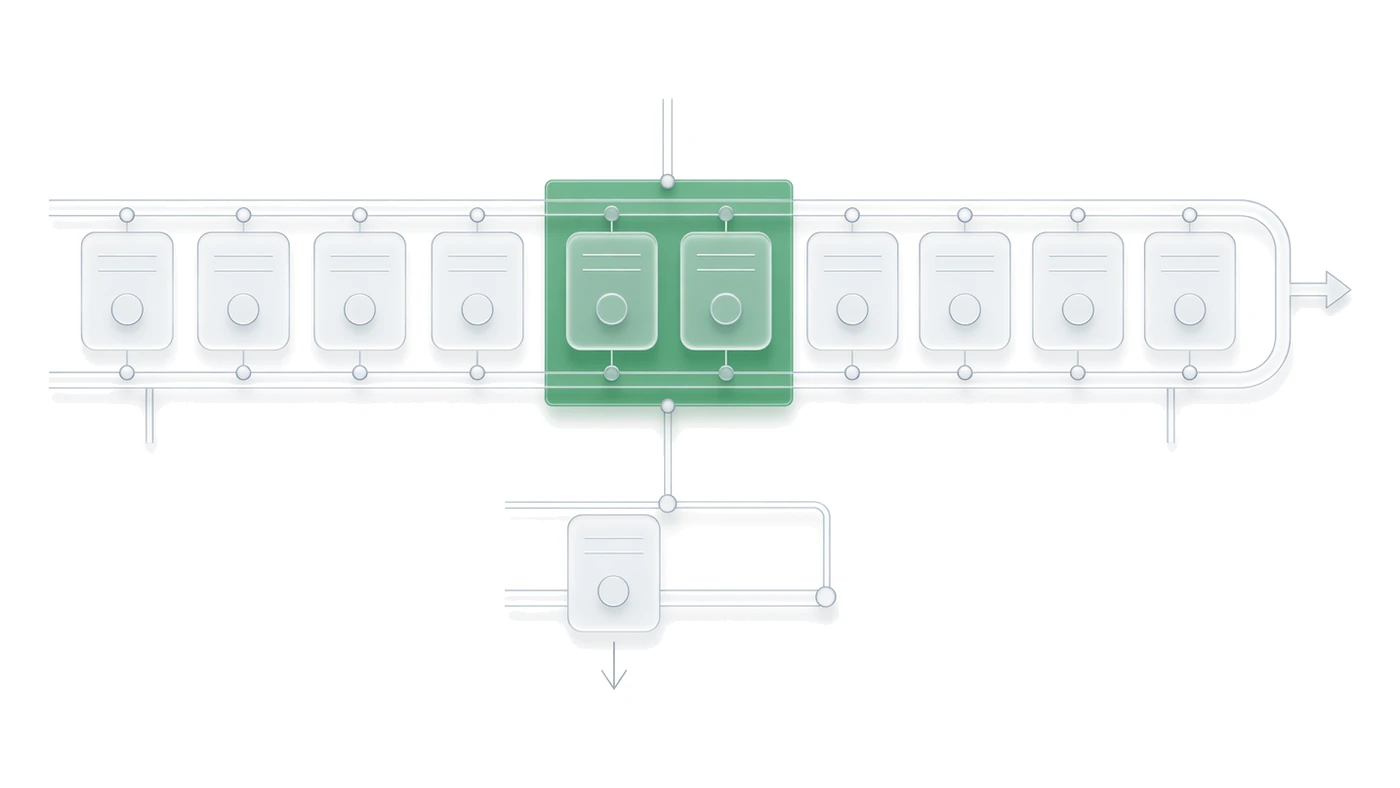
When a Shopping or Performance Max account underperforms, the bid strategy usually gets blamed first and the feed gets checked last, if at all. In most accounts I audit the order should be reversed: a product that is disapproved, missing an attribute, or sitting in limited status never enters the auction, so no bid adjustment can fix it. Feed health is the ceiling on everything Smart Bidding can do.
Why does a Shopping or PMax account stall even when bids look fine?
Bidding only works on products that are eligible to serve. If a meaningful share of the catalog is disapproved, stuck in limited status, or excluded by a feed rule, the account is bidding hard for a shrinking pool of live inventory. Impressions and clicks fall, the bid strategy compensates by raising bids on what remains, and cost per acquisition climbs while the real cause never shows up in a campaign-level report.
This is the same trap covered in the Performance Max optimization guide: PMax pulls signals from the feed and the account structure together, so a feed problem looks identical to a targeting problem until you check product status directly in Merchant Center.
What actually gets a product silently removed from a feed?
Disapprovals rarely announce themselves in the campaign dashboard. A product can be pulled for a policy violation, a data quality issue such as a mismatched price or missing GTIN, or a crawl failure on the landing page. None of these throw a Google Ads alert; they only show up as a status change inside Merchant Center's diagnostics.
- Policy disapprovals: prohibited content, misleading claims, or a landing page that does not match the offer
- Data quality disapprovals: price or availability mismatches between the feed and the live page
- Missing or invalid identifiers: a GTIN, MPN, or brand that fails validation
- Crawl errors: the landing page URL returns an error or redirects to something unrelated
Google's own guidance on this is in the item disapprovals help center, which lists the disapproval reasons and how they map to the diagnostics tab.
Which attributes are required, and which only look optional?
Required attributes such as ID, title, description, link, image link, price, availability, and condition will get a product flat-out rejected if they are missing or malformed. Recommended attributes such as GTIN, brand, product type, and Google product category are not enforced the same way, but skipping them narrows how PMax and Shopping can match the product to a query, which shows up as low impressions rather than a rejection.
The full attribute list and which ones apply to your category are in Google's product data specification. Treat the recommended fields as required if the product competes in a category where competitors fill them in, because Google matches on the data it has, not the data it could theoretically infer.
How do you tell a disapproval from a feed rule warning?
A disapproval means the product cannot serve at all. A warning, like a recommended attribute being blank or a title that is shorter than ideal, means the product can still serve but is competing at a disadvantage. Both are worth fixing, but they need different urgency: clear disapprovals first because they are a hard stop, then work through warnings as a quality pass.
If a campaign has both a feed problem and disapproved individual ads, resolve them separately. The disapproved ads policy appeals guide covers the ad-level process, which uses a different review queue than product disapprovals.
What does a weekly feed health check actually cover?
A short weekly routine catches most feed problems before they cost a week of missed impressions. It does not need to be complicated, just consistent.
- Check the Diagnostics tab in Merchant Center for new disapprovals and their reasons
- Compare the number of active products this week against last week
- Spot-check five to ten top-selling products for price and availability accuracy against the live site
- Confirm the feed's last successful fetch time matches your update schedule
- Review any new policy emails from Google before they escalate to account-level enforcement
Pair this with the account structure checks in the performance max vs search campaigns comparison, since a healthy feed still needs a sensible campaign split to convert into results.
How do you know it is the feed and not the bid strategy?
Pull impression share and active product count over the same date range. If active products drop while impression share on the remaining products stays flat or improves, the bid strategy is doing its job on a shrinking pool, and the fix is in the feed. If impression share falls while product count holds steady, that points back to targeting or budget, which is a separate diagnosis.
Check Merchant Center diagnostics before touching a bid. A disapproved or attribute-poor product cannot be bid into the auction, and no amount of Smart Bidding patience will fix a feed problem.